Microsoft Intune (iOS)
Best for: Organizations managing iOS/iPadOS devices through Microsoft Intune.
This guide covers the SlashID Authenticator iOS app. The app is published on the App Store, so on iOS the deployment takes two steps: assign the app from the App Store as a managed app, then deliver its activation code through an App configuration policy. An optional third step routes the app's Microsoft sign-in through the Microsoft Enterprise SSO plug-in, so users are never prompted for credentials. Once the code is applied, the app activates automatically and skips manual setup. The app requires iOS 15.0 or later. Use the Microsoft Intune admin center to set it up.
Step 1: Deploy the app from the App Store
Add the app by navigating Apps -> iOS/iPadOS -> Add, and choose App type: iOS store app.
Search for SlashID Authenticator, or select it via its store listing:
https://apps.apple.com/us/app/slashid-authenticator/id6760341477
This is the SlashID Authenticator app (bundle id com.slashid.mobilesensor).
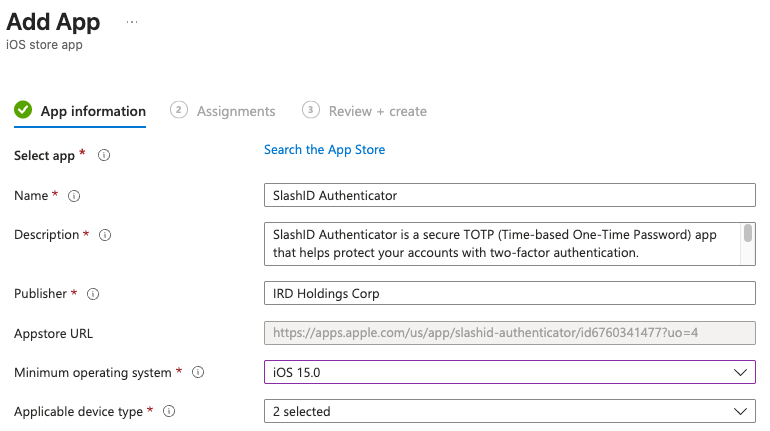
Complete the rest of the wizard. Under Assignments, add the app as Required for the groups of devices or users who should receive it - this installs the app as a managed app, which is what allows the configuration in Step 2 to be applied.
Step 2: Apply the configuration
Create the configuration policy by navigating Apps -> App configuration policies -> Add -> Managed devices.
Platform: iOS/iPadOSTargeted app: select SlashID Authenticator
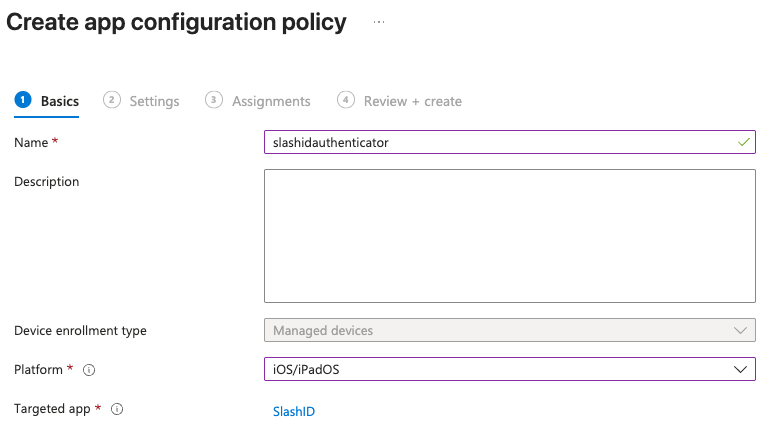
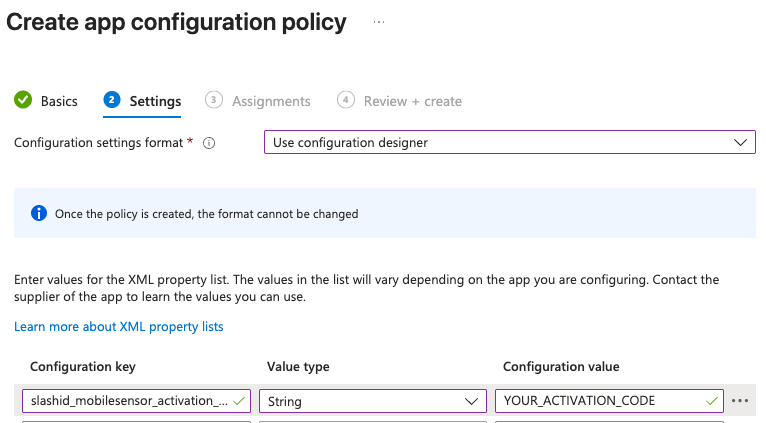
On the Settings step, choose Configuration settings format: Use configuration designer and add a single key:
| Configuration key | Value type | Configuration value |
|---|---|---|
slashid_mobilesensor_activation_code | String | YOUR_ACTIVATION_CODE |
Replace the value with the activation code of your SlashID Sensors data source.
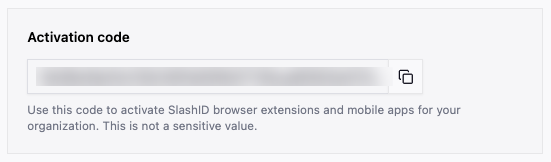
Complete the rest of the policy wizard, and be sure to assign it to the same groups you targeted with the app in Step 1.
Allow a short delay between Intune installing the app and opening it. The app reads the activation code once at launch, so the configuration policy needs a moment to reach the device first. If the app is opened before the code arrives it will show the manual activation screen — simply close it and reopen it once the policy has synced, and it will activate automatically.
Step 3 (optional): Silent Microsoft Entra sign-in
After activation the app signs the user in through SlashID, which redirects to Microsoft Entra ID. On an Intune-enrolled device the Microsoft Enterprise SSO plug-in, hosted by Microsoft Authenticator, can attach the device's Entra credential to that sign-in, so the user sees no password prompt, account picker, or consent screen. The app does not use MSAL, so it has to be allow-listed explicitly through a Single sign-on app extension profile. This is a device configuration profile, separate from the App configuration policy in Step 2.
Before creating the profile, make sure that:
- Microsoft Authenticator is installed on the device from the App Store. It hosts the SSO extension and does not need to be opened or configured.
- Exactly one Entra work account is present on the device. With two or more, Microsoft shows the account picker even when auto-login is enabled.
- Tenant-wide admin consent is granted for the app registration whose client ID is configured on your SlashID Entra connection. Without it every user sees a
Permissions requestedscreen once. See Silent Onboarding for details.
Create the profile by navigating Devices -> Configuration -> Create -> New policy.
Platform: iOS/iPadOSProfile type: Templates -> Device features
Under Single sign-on app extension, set:
SSO app extension type: Microsoft Entra IDApp bundle IDs:com.slashid.mobilesensorAdditional configuration: add a single key:
| Key | Type | Value |
|---|---|---|
disable_explicit_app_prompt_and_autologin | Integer | 1 |
The extension identifies apps by bundle id on their network requests, which is why the bundle id is listed here rather than the Intune app record. The disable_explicit_app_prompt_and_autologin key makes the extension select the matching account automatically - without it the extension suppresses the password prompt but still shows an account picker.
Complete the rest of the profile wizard, and be sure to assign it to the same groups you targeted with the app in Step 1 and the configuration policy in Step 2.
To confirm the profile reached the device, open Settings -> General -> VPN & Device Management -> Management Profile -> More Details and check for a Single Sign-On Extension entry. To force a sync, open Company Portal, select the device and choose Check status.
With all three items applied, the first launch skips the activation screen, opens the sign-in sheet, passes through Microsoft without any interaction, and lands on the app's lock screen.